A clip opens on your computer, but someone else sees an unsupported-file message, silence or a frozen picture. That is frustrating, and the filename alone rarely explains it. A useful diagnosis starts by separating the file's contents from the abilities of the player that opens it.
A compatibility failure is not proof that a file is damaged. Equally, a successful opening frame is not proof that the entire file is healthy. Test playback, seeking and sound before deciding which problem you have.
An MP4 extension does not identify the codec
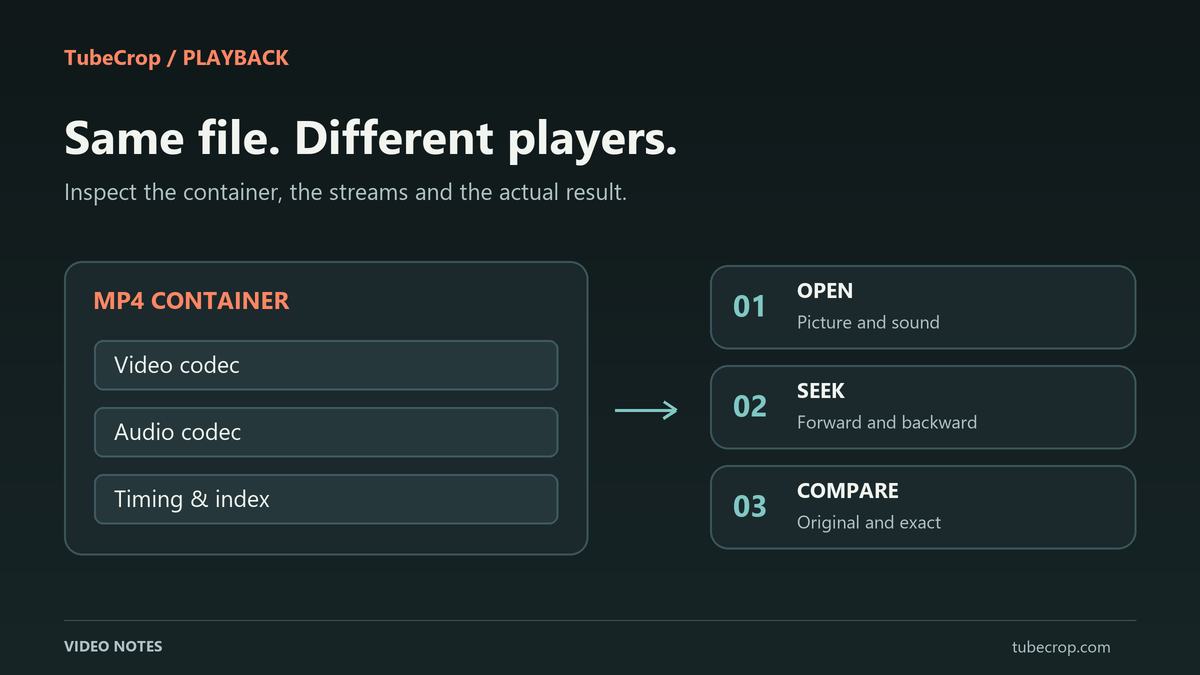
MP4 is a container: it can hold video, audio and timing information. The video codec is another part of the description. Two files named video.mp4 can contain different video codecs, audio tracks and encoding profiles.
VLC, a browser and a messaging application do not necessarily accept the same combinations. Support can also depend on the operating system and device. Renaming a WebM file to end in .mp4 does not convert its contents.
The MDN container guide explains the distinction. Its video codec guide is useful when checking what a specific codec means for delivery. Avoid assuming that a single extension guarantees playback everywhere.
Check three different symptoms
An immediate “unsupported” message suggests checking the container and codecs against the destination's accepted inputs. The destination may reject a perfectly readable original source because it does not accept that combination.
Picture without sound calls for checking the audio track. The selected source might be video-only, the player might not support the audio codec, or editing controls may have muted it. Listen to the source and inspect the export choices before making another conversion.
A picture that freezes after seeking needs a different investigation. Test whether it resumes, whether the audio continues, and whether the same interval fails in multiple players. Keep the actual exported file: a URL or screenshot alone cannot establish whether packets, timestamps or the container index are at fault.
Original downloads preserve the source's requirements
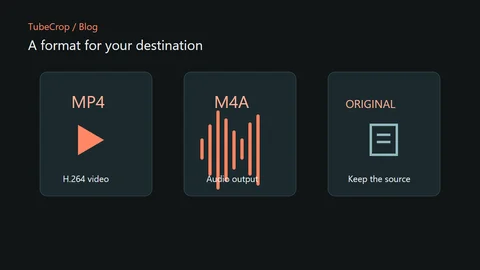
An original download is valuable when you want to retain the available source bytes or streams. It also preserves their decoding requirements. Choosing an original VP9 or AV1 source does not turn it into H.264 merely because the output uses an MP4 container.
Lossless cutting copies compatible compressed streams. It can avoid another encode, but it is not a universal compatibility repair. The lossless cutting guide explains why safe boundaries and exact selected timestamps can differ.
TubeCrop's current video processing policy uses H.264 for edits that need re-encoding. AV1, HEVC and VP9 are copy-only choices. Check the displayed effective output when an adjustment changes the available format; WebM edits that require this processing use MP4/H.264.
Use a small comparison instead of changing everything
Take a representative short interval from material you are allowed to process. In the video cutter, compare the appropriate original or lossless result with an exact MP4/H.264 export. Play both in the destination where the failure occurred.
Check the beginning, middle and end with sound.
Seek forward and backward, including near the selected boundaries.
Confirm duration and picture orientation.
Keep the source and export settings alongside the comparison files.
An exact export that works is useful evidence, but it does not identify the original defect by itself. Decoding and encoding again may change several properties at once. Likewise, a container-only remux cannot recreate genuinely missing frames or audio.
Share the result you actually tested
For a short clip intended for several viewers, MP4/H.264 is a practical starting choice, subject to the destination's requirements. It remains necessary to test the actual exported file; TubeCrop does not guarantee acceptance by every messaging service, browser or device.
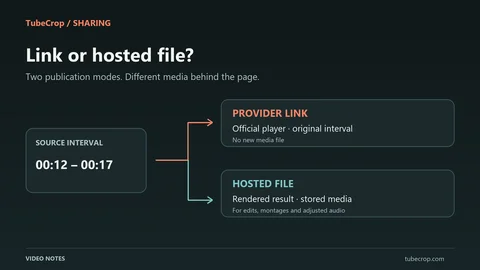
If you only need to share a supported YouTube interval, a provider clip link is another option. It uses the provider's player rather than delivering a new video file and therefore does not solve a recipient's need for a downloadable compatible copy.
Use the format guide to choose an output and the wiki for troubleshooting steps. Report repeatable failures with the source, interval, selected mode and affected player, rather than repeatedly exporting the same uncertain result.