You set a cut at the perfect instant, export the video, and notice that the result begins slightly earlier. This is not always a broken timestamp. With compressed video, the fastest path through an export can place restrictions on where a cut can begin cleanly.
The choice between lossless and exact cutting is a choice about the work performed on the media. It is not simply a quality slider.
Why a frame may depend on other frames
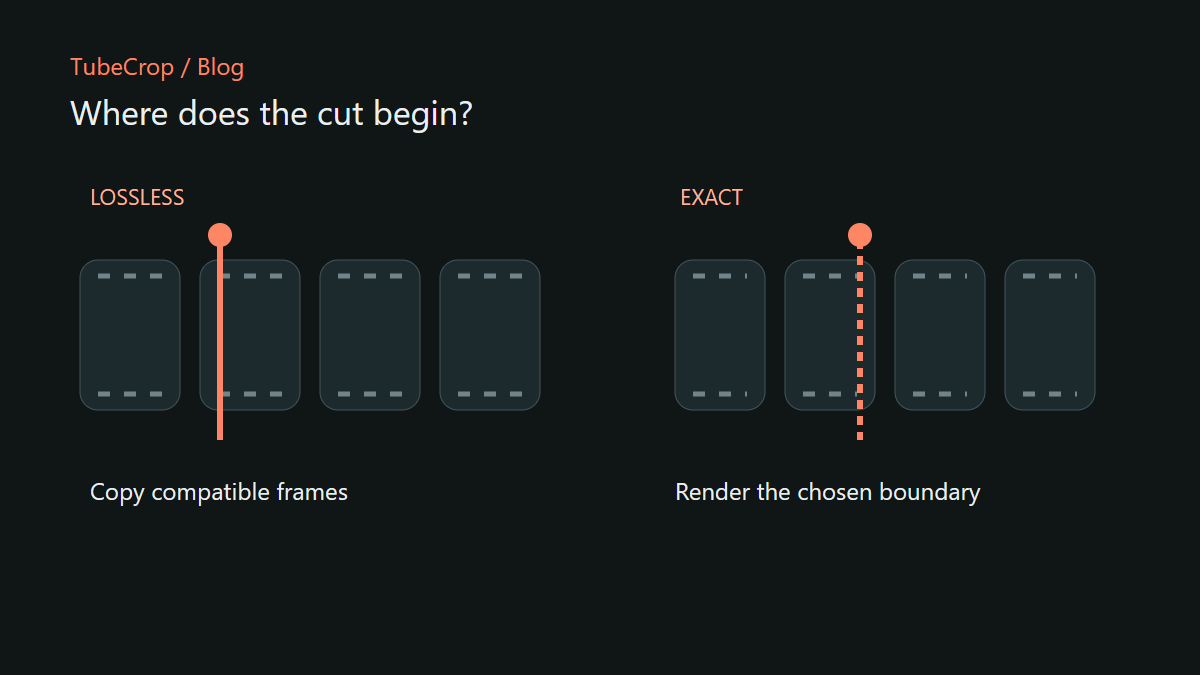
Many video codecs store some frames using information from their neighbours. A keyframe provides a point from which a decoder can begin reconstructing the picture. Cutting by copying compressed packets avoids generating a new video stream, but a requested boundary may not coincide with a suitable independently decodable point.
TubeCrop's lossless path is available for compatible material and edits. When effective cut limits are shown, compare them with your selection. If a spoken introduction or a confidential frame must be excluded precisely, an approximate boundary is not enough.
For example, suppose your requested start is 12.4 seconds. Do not assume that a packet-copy export starts at exactly 12.4 merely because that was the number in the editor. Inspect the reported boundary and watch the exported beginning.
What exact cutting changes
Exact export decodes and renders the selected content before encoding the result. That is the path needed when an edit changes the picture or combines content in ways that packet copying cannot represent.
Overlays, chroma key and transitions are practical examples. Mixing audio can also require processing even if a picture looks unchanged. Each selected track matters; a faster export is not useful if it omits part of the project.
Re-encoding takes processing time and can introduce generation loss. The benefit is control over the output frames and the composition. Exact timing still follows the frame grid of the project: a video consists of discrete frames, not an unlimited set of possible picture boundaries.
Three cases worth separating
An unchanged original: downloading the original can preserve its bytes without creating a new encode.
A compatible assembly: lossless copying can avoid re-encoding, subject to the actual source and cut constraints.
A rendered edit: precise cuts, visual composition or incompatible material require an exact export.
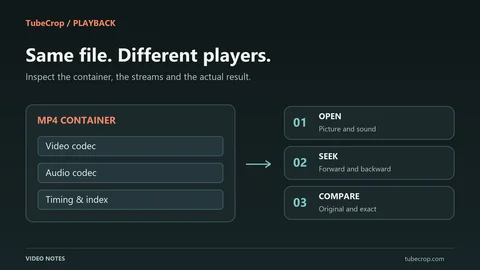
A filename or container extension does not tell you which of these happened. Two MP4 files can contain very different streams and can have been produced by different export paths.
Make the decision using your clip
For a casual excerpt with room around the action, compatible lossless cutting may be sufficient. For a music cue, tightly timed dialogue, or a clip that must begin on a particular picture, choose the exact path and check the result.
Replay the first and last seconds after export. Listen as well as watch: a picture boundary can look fine while the audio begins mid-word. For a sequence, also inspect each join.
Start in the basic editor, or use Studio for several segments. The wiki explains the controls; the export dialogue should explain why a particular project needs rendering. Choose based on the boundaries and edits you need, not on an assumption that one mode is universally better.