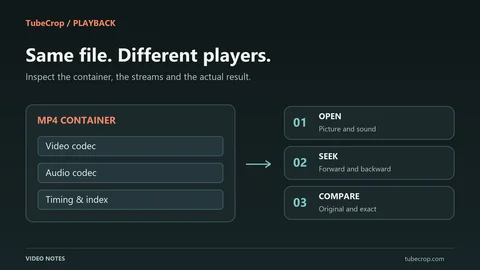
An export format is more than the letters at the end of a filename. A container holds streams; a codec describes how a stream is encoded. MP4 is a container, while H.264 is a video codec. Understanding that difference helps explain why one MP4 plays in a browser and another may need different decoding support.
For a clip you plan to send to several people, a broadly usable output is often more useful than the smallest possible file.
Start with the destination
Ask where the result will be watched: a web page, a messaging application, a presentation, or an editing tool. Each destination has its own constraints. A successful preview on your computer does not establish compatibility with every viewer's browser or device.
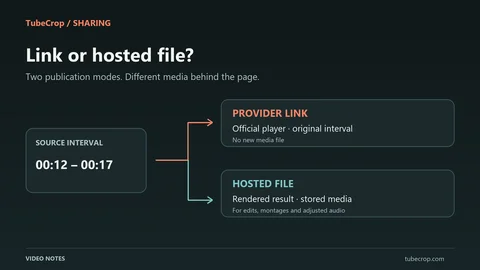
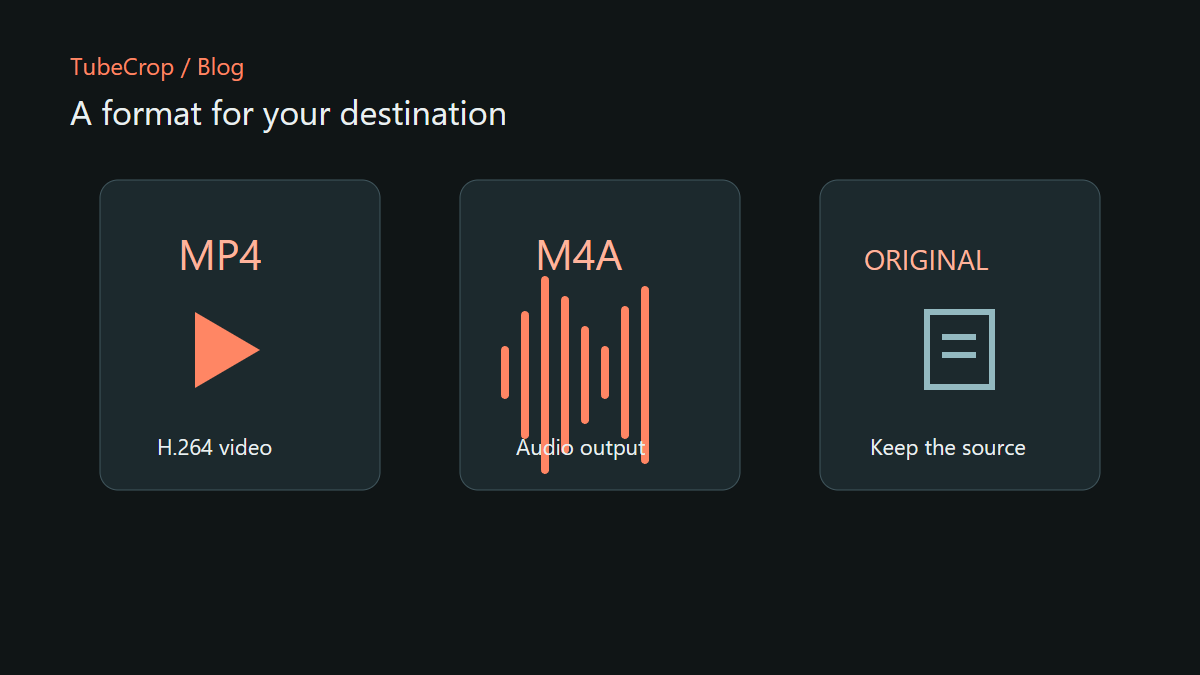
TubeCrop publication uses MP4/H.264 for video and M4A for audio. Ordinary downloads have their own format choices and behaviour. Check the selected export format rather than assuming the download and publication buttons create identical files.
For a video intended for browser playback, MP4/H.264 is a practical starting point. Test the actual result in the destination that matters to you, particularly if the source has unusual audio tracks, frame rates or dimensions.
Copying a source is different from encoding it
If an original file is already suitable and you have made no changes, preserving it avoids a generation of encoding. A compatible lossless cut can also keep the source codec without running an encoder for every frame.
That distinction matters with AV1. TubeCrop avoids AV1 for newly rendered exports under its CPU-oriented export policy. Copying an existing AV1 stream in a compatible original or lossless workflow is a different operation from creating a new AV1 encode.
A more computationally demanding codec is not automatically the best choice for an interactive clipping workflow. Processing speed, playback support and the purpose of the output all matter.
Keep resolution tied to the source
Increasing the output dimensions does not recover detail that was absent from the source. If a recording is already small or heavily compressed, exporting a larger frame can increase work and file size without improving the original information.
A useful check is to watch text, faces or fast movement at the size your audience will actually use. A small preview can hide compression artefacts that become obvious in full-screen playback.
Likewise, avoid treating a bitrate or quality setting as a universal guarantee. Different scenes contain different amounts of movement and detail, so similar settings can produce different sizes and visual results.
Audio-only results
If the useful material is a spoken explanation, an audio-only result may be appropriate. Listen for the beginning and ending of words, unwanted silence and abrupt volume changes. Converting the container alone cannot repair distorted or missing source audio.
Keep an original copy if you expect further editing. Repeatedly converting a lossy result into another lossy format adds processing without restoring what was removed earlier.
Before you share
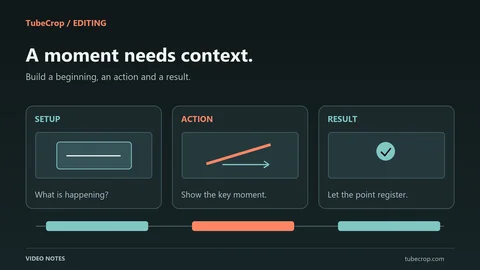
Export a representative short section when trying a new workflow. Confirm that the file has the expected extension, plays with sound, and has the expected duration. For a rendered montage, inspect transitions and joins as well as the opening frame.
The lossless and exact cutting article explains when copying is possible. Use the editor to try an individual clip and the wiki for the available controls. There is no single format that removes the need to check your actual result.