A highlight sequence needs a reason for each cut. A long recording might contain several interesting moments, but placing every one of them into a shorter file does not automatically make a clear story. TubeCrop Studio gives you the timeline tools; deciding what connects the moments remains an editorial choice.
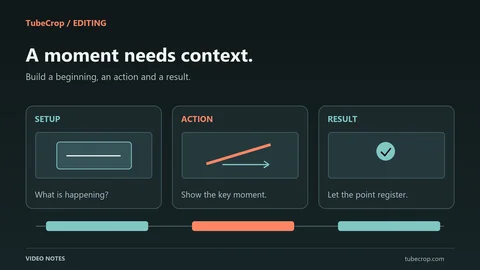
Consider a recording of a workshop. A useful highlight might show a question, the explanation that answers it, and the finished result. Those sections may be far apart in the source while belonging next to each other in the montage.
Build the structure before polishing
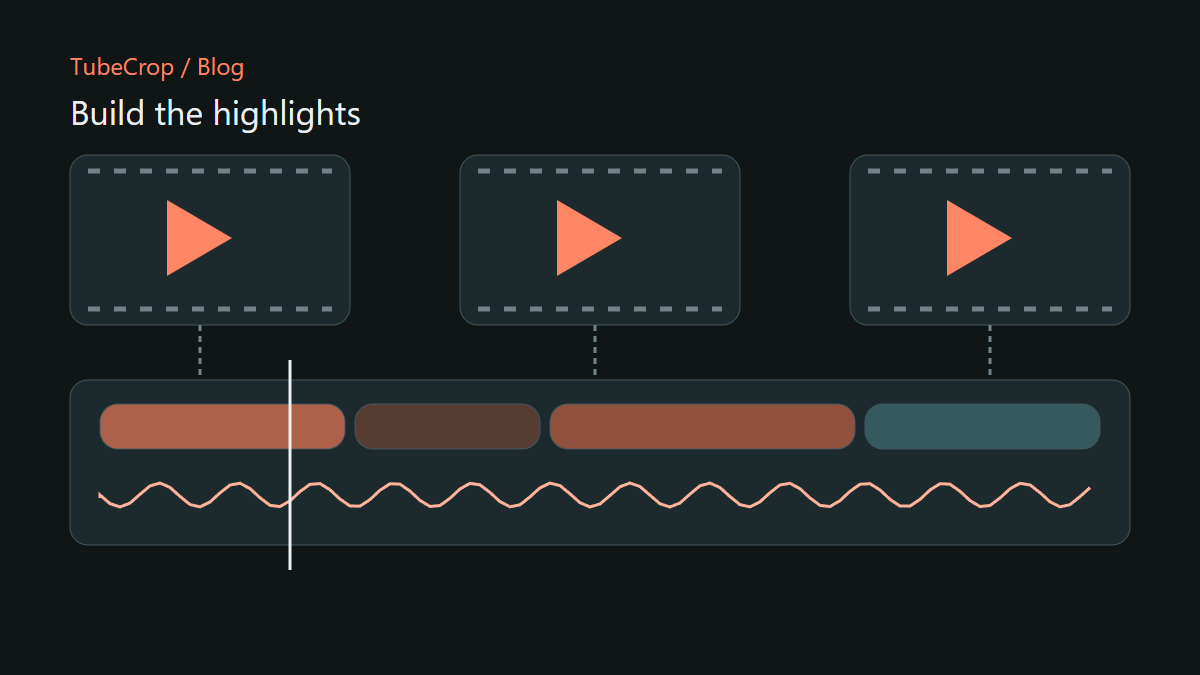
Add your sources to Studio, identify the intervals you need, and arrange the segments in a sensible order. Keep enough context around each section to make the speaker or action understandable.
Start with cuts that work without decoration. If the sequence is confusing with ordinary joins, adding a transition rarely solves the underlying problem. Reorder or shorten the segments first.
Studio preserves the source intervals as part of the project. The montage timeline is independent: moving a segment changes where it plays in the result, not where that content originally occurred.
Use audio to check continuity
Audio often reveals a bad join before the picture does. Play across each boundary and listen for clipped words, changes in background sound and unexpected level jumps. Waveforms help you locate activity, but the shape alone cannot tell you whether an edit makes sense.
If you add independent music or narration, check it against the whole sequence. Moving linked video and audio should preserve their relationship; an independent music track has its own position and needs its own editorial attention.
Mute and solo controls are useful for inspecting tracks. Before export, return to the intended listening combination and check that no track was left in a diagnostic state.
Transitions change time
A transition overlaps material from consecutive segments. Two ten-second segments with a one-second overlap form a nineteen-second sequence, not twenty seconds. That reduction is important when your montage must fit a particular length.
Use transitions where they communicate something: a dissolve can soften a change of scene, while a direct cut can make an action feel immediate. Long transitions between very short segments can obscure the material you selected.
Changing a transition's duration can move the following sequence. Recheck later cues after that adjustment, especially when independent audio or another visual track has fixed timing.
Keep a recoverable project
Save your project and retain the source files. Browser drafts make it easier to return to an editing session, but temporary media can expire. An exported project describes edits; it is not a replacement for every original video or audio file.
Before closing a session, give the project a meaningful title and consider downloading a project copy. If a source needs reassociation later, knowing exactly which recording you used saves time.
Review the finished sequence
Watch the montage from the beginning without touching the controls. Then export and repeat that check on the resulting file. Look for unwanted gaps, abrupt audio changes and the correct ending.
Transitions, overlays and other composition work require exact rendering. Processing time depends on the project and available capacity; a complex montage is not equivalent to copying one source interval. The format guide and wiki can help you choose the next step without losing sight of the story you want to tell.