You have a recording of a conversation, a lesson or a demonstration, but the picture is not what you need to keep. An audio excerpt can be easier to review, attach to notes or pass to someone who only needs the spoken explanation. The useful question is which audio result suits that job, rather than which extension sounds most advanced.
This guide assumes that the source contains an audio track and that you have permission to process it. A silent video cannot yield the missing conversation simply by choosing an audio format.
Choose the listening task first
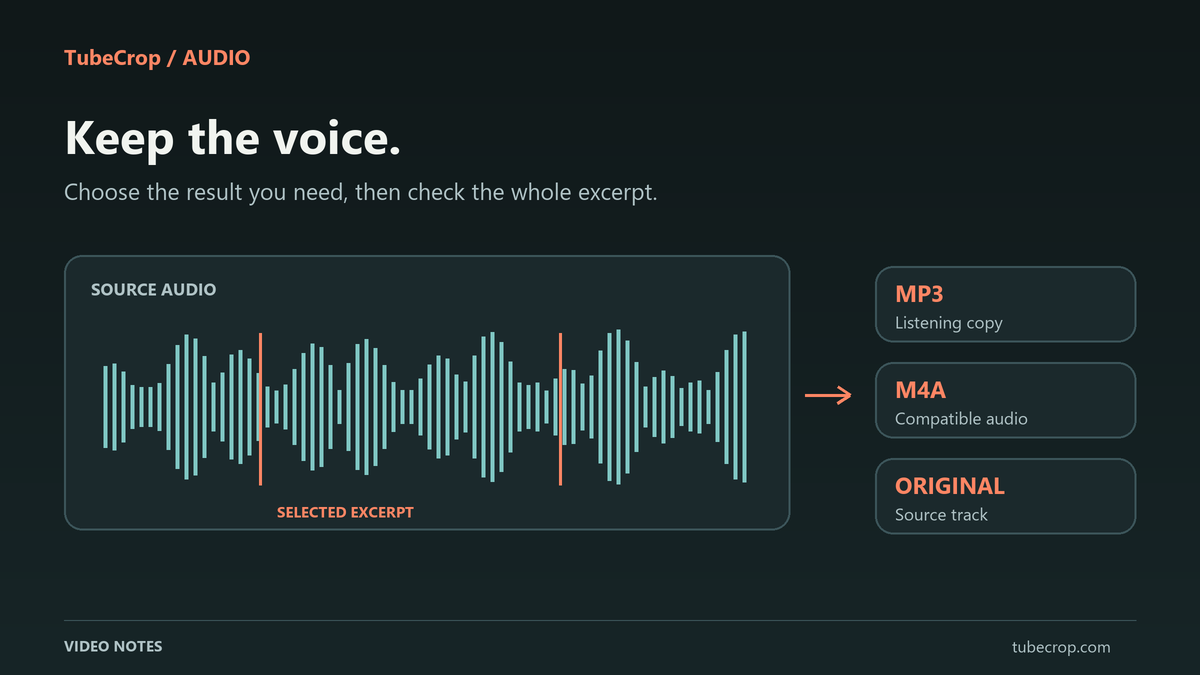
For a spoken excerpt that needs to play on several devices, MP3 is a familiar starting point. If your next step is more editing, keep the original source as well. Converting an already compressed recording again does not restore detail, remove background noise or repair clipped speech.
M4A describes an audio container. An AAC track may already be available in a compatible source, whereas asking for MP3 from that track requires an audio conversion. WAV and FLAC are useful in some editing workflows, but selecting them cannot recover information lost earlier and may produce a substantially larger file than you need for casual listening.
TubeCrop offers several audio outputs; the available source and chosen operation still determine what can be copied and what must be encoded. The MDN audio codec guide explains the underlying formats independently of TubeCrop.
Make a spoken excerpt in TubeCrop
Open the MP3 audio tool and add a local file or a supported public video link. This page starts new sources with MP3, 192 kbps and exact cutting. Review the settings after the source loads, especially if you have already made manual changes.
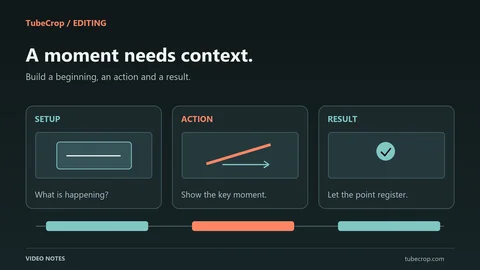
Suppose the explanation you need runs from 01:00 to 01:30 in an interview. Select 60 seconds as the start and 90 seconds as the end. Listen across both boundaries before exporting. A sentence that technically starts at 60 seconds may still depend on a question spoken just before it.
Leave enough room for the first consonant and the end of the final word.
Check that the selected track contains the speaker you want.
Export the audio, then open the downloaded result and listen again.
The selected bitrate is an encoding choice, not a guarantee of a particular perceived quality or final file size. Background music, the recording quality and the amount of source compression all affect the result.
When an original audio variant is available
Some remote sources expose a separate audio-only variant. If TubeCrop lists one under Source variants, it can provide a more direct route to the original audio than converting a combined video file to MP3. Availability differs between providers and individual videos.
Keeping an original track unchanged is different from extracting it into another container or cutting an interval. Extracting a compatible AAC track into M4A may avoid an audio encode while still requiring transfer and remuxing. Do not interpret “without re-encoding” as “without processing or waiting.”
If you need precise boundaries, review the difference between lossless and exact cuts. An original-track download and an exactly timed excerpt solve different problems.
Diagnose silence before repeating the export
First play the source with sound enabled. Check whether the source actually has an audio track, whether you selected an audio-only or video-only variant, and whether mute or volume controls explain what you hear. In Studio, inspect linked audio, track mute and solo settings too.
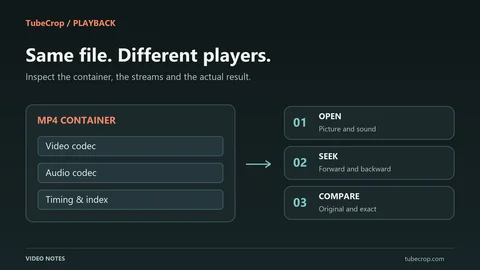
If the source has no usable audio, choosing another output extension will not fix it. If only one player is silent, test the exported file in another player to distinguish missing audio from a playback limitation. Keep the source URL and the selected settings when reporting a failure; never share private management links or credentials.
Keep the version you may need later
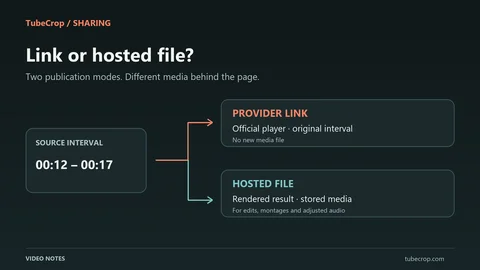
Use the basic editor for a single excerpt and Studio when you need to combine sources or adjust several tracks. Download saves a file; Publish creates a public clip page with its own retention and visibility rules. Neither action means that TubeCrop is a permanent backup of your original recording.
The wiki audio section covers the editing controls. Keep the original recording somewhere you control if you expect to revisit the edit.